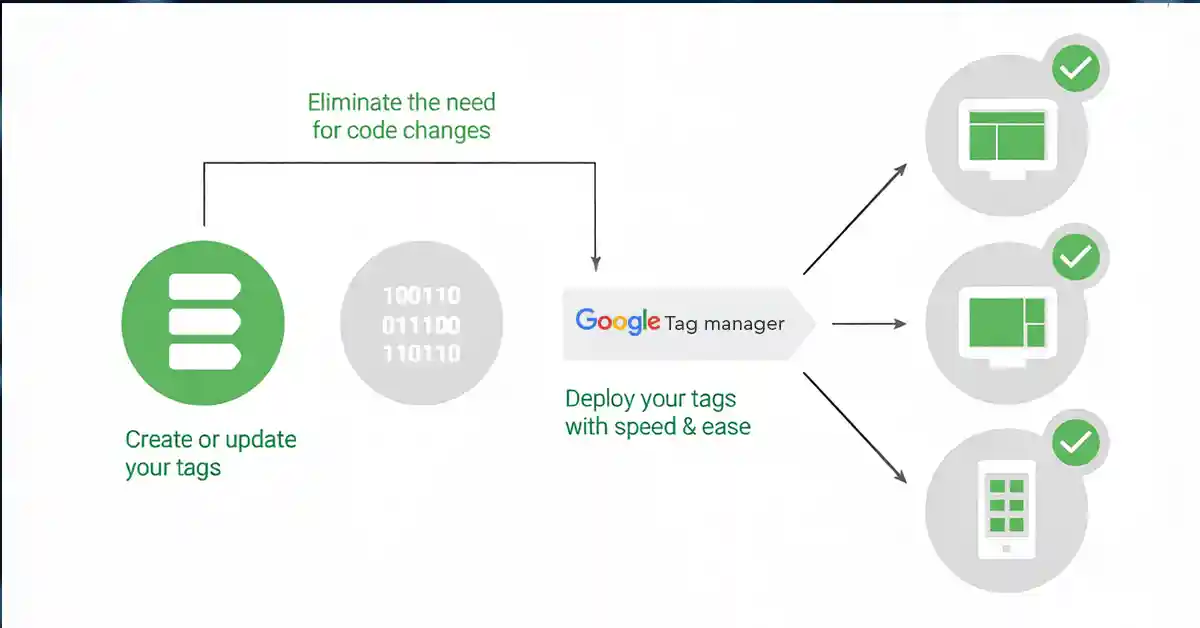
Does the thought of installing Google Tag make you nervous about the technical steps? Business owners who run Google Ads, build their brand on social media, or manage an e-commerce website need to track what works and what doesn’t.
Google Tag is a code snippet that tracks your website’s valuable user interactions. The right installation lets you monitor key actions such as purchases, form completions, and newsletter sign-ups. Your marketing efforts remain unclear without this tracking system. You might get clicks, but you won’t know if they convert to sales or leads. This data is vital to measure ROI, optimise ads, and make smart marketing decisions.
This piece guides you through each step to set up conversion tracking that shows the real effect of your marketing work.
Setting up the Google tag on your website marks the beginning of tracking conversions. This JavaScript code snippet (previously known as the global site tag or gtag.js) lets you use multiple Google products with a single implementation.
To get started, you need your unique tracking ID from your advertising or analytics platform. Once installed correctly across your website, the tracking setup enables you to monitor user activity, measure campaign performance, and understand how visitors interact with your pages.
Proper placement of the tracking tag ensures accurate data collection across all relevant webpages. With the right configuration in place, businesses can measure site performance, track conversions, build remarketing audiences, and make data-driven marketing decisions with confidence.
The code placement is crucial – it must appear right after the opening <head> tag on every webpage you want to monitor. This single tag implementation creates a foundation that enables you to:
Users of the previous global site tag need not worry about code updates since existing installations have automatically converted to the Google tag.
The Google tag installation on your site paves the way for adding the event snippet. This specific code tracks actual conversion actions such as purchases, sign-ups, and other valuable customer activities, unlike the global site tag.
Your conversion page needs the event snippet placed after the Google tag. The <head> section of your HTML provides the best location to ensure accurate tracking
The code requires three main parameters:
You can boost tracking capabilities with optional parameters. Adding transaction_id helps identify orders, while new_customer: true can improve your new customer acquisition coverage.
Dynamic conversions require modifications to the snippet that pass transaction-specific values at runtime. Your web development team can help determine the quickest way to integrate this based on your server technology.
Note that the Google tag belongs on all site pages, while the event snippet should only appear on pages where conversions occur.
Google Tag installation can go wrong in several ways, even when you follow the instructions carefully. The most critical mistake happens when you put the tag in the wrong spot. Your Google tag snippet needs to sit right after the opening <head> HTML tag on every page of your website. If you place it too far down in the page code, it might load late and miss important data from users who leave before the page loads completely.
The tag ID can also cause problems. Make sure the Measurement ID in your website code matches your Google Analytics property’s ID exactly. Even tiny mistakes like extra spaces or changed characters can stop your tag from working right.
Many people forget to publish their changes. You need to click “Submit” after setting up tags in Google Tag Manager to make them work. Without this step, everything looks perfect in Preview mode but fails on your live site.
Data problems pop up when you use multiple containers for one website or the same container for different sites. On top of that, it creates tracking issues when you run both Google Tag Manager and Google Tag at once.
You should always check your setup with Tag Assistant to make sure the tag fires correctly. This quick debugging step helps you avoid gaps in tracking that could lead to decisions based on incomplete data.
A correctly set up Google Tag revolutionises your marketing approach from guesswork to evidence-based decision-making. This piece walks you through everything needed to implement it properly, from placing the global site tag in your website’s <head> section to adding specific event snippets on conversion pages.
Note that a single mistake during installation can derail your tracking system completely. You should verify tag placement, double-check your IDs and test your implementation using Tag Assistant before finalising. On top of that, it helps to avoid common pitfalls like using multiple containers or not publishing your changes.
A properly configured Google Tag is a great way to get insights about which marketing efforts actually work. You’ll see your customers’ experience clearly, allocate budgets better and optimise campaigns based on real performance instead of assumptions.
The technical parts might look intimidating at first. By doing this and being systematic, you’ll capture the data needed to measure ROI accurately. Knowing which clicks convert into customers is the foundation of smarter marketing decisions and eco-friendly business growth. Installing the Google Tag correctly is essential for accurate conversion tracking and campaign optimisation. A proper setup helps you monitor user actions, measure ROI, and improve your ad performance with reliable data insights. By following the right steps, you can ensure seamless tracking across your website and make smarter marketing decisions. If you need expert guidance to implement conversion tracking without errors, connect with Digital Tokri today and let our team streamline your analytics for better results.
© Digital Tokri (Ira Digital Services). All rights reserved.
 Back
Back